

CONNECTION TROUBLESHOOTING
Controller not detected?
Work through these checks in order. Stop when the controller appears and responds.
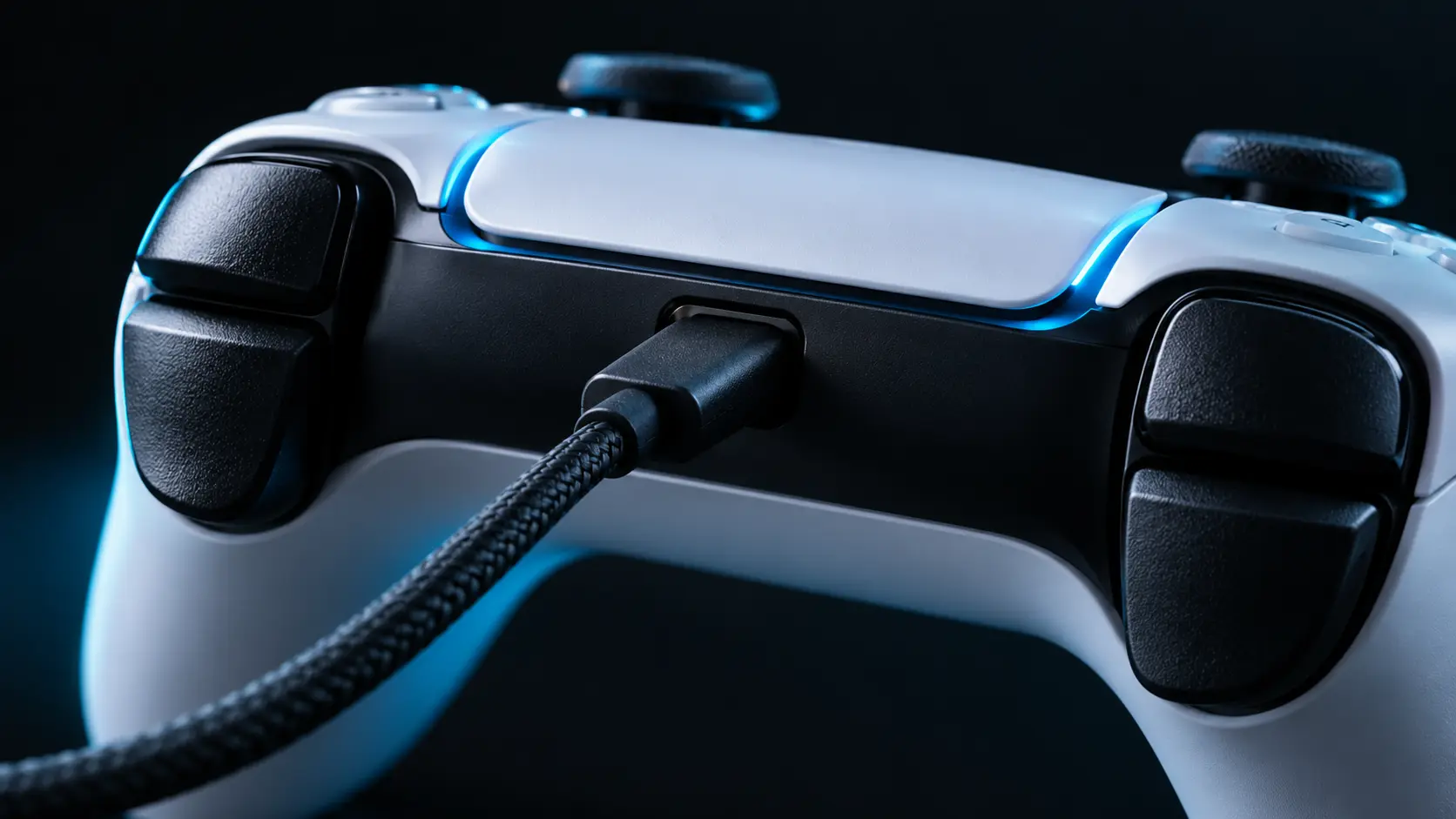
1. Check the physical connection
A charging light only confirms power. Try a known data-capable USB cable and a direct port on the computer. For Bluetooth, confirm the operating system shows the device as connected, not just saved in its pairing list.
2. Focus the page and press a button
Browsers can wait for user interaction before exposing a gamepad. Open the tester in its own HTTPS tab, click the page and press a face button. Avoid testing inside another site’s embedded frame.
3. Check operating-system recognition
If the computer itself cannot see the controller, the webpage cannot supply the missing driver or pairing. Reconnect it and check the operating system’s device or game-controller settings before returning here.
4. Inspect remapping software
A remapper may expose a virtual controller or hide a physical one. Check the tester’s device menu. Compare with the remapper enabled and disabled only if you understand the profile you are changing. Do not disable security tools to make a controller appear.
5. Separate detection from mapping
A controller may be detected without a standard layout. Open raw readings and press buttons to see whether input changes. Unknown mappings can still provide useful raw data, even when named stick tests are unavailable.
6. Try another browser or connection
Browser and operating-system support differs. Try a current browser and a USB connection to narrow down the problem. Recheck with the same controller in a known working application; this helps separate a browser issue from a broader connection problem.
Return to the controller tester →
Reference: MDN: using the Gamepad API.