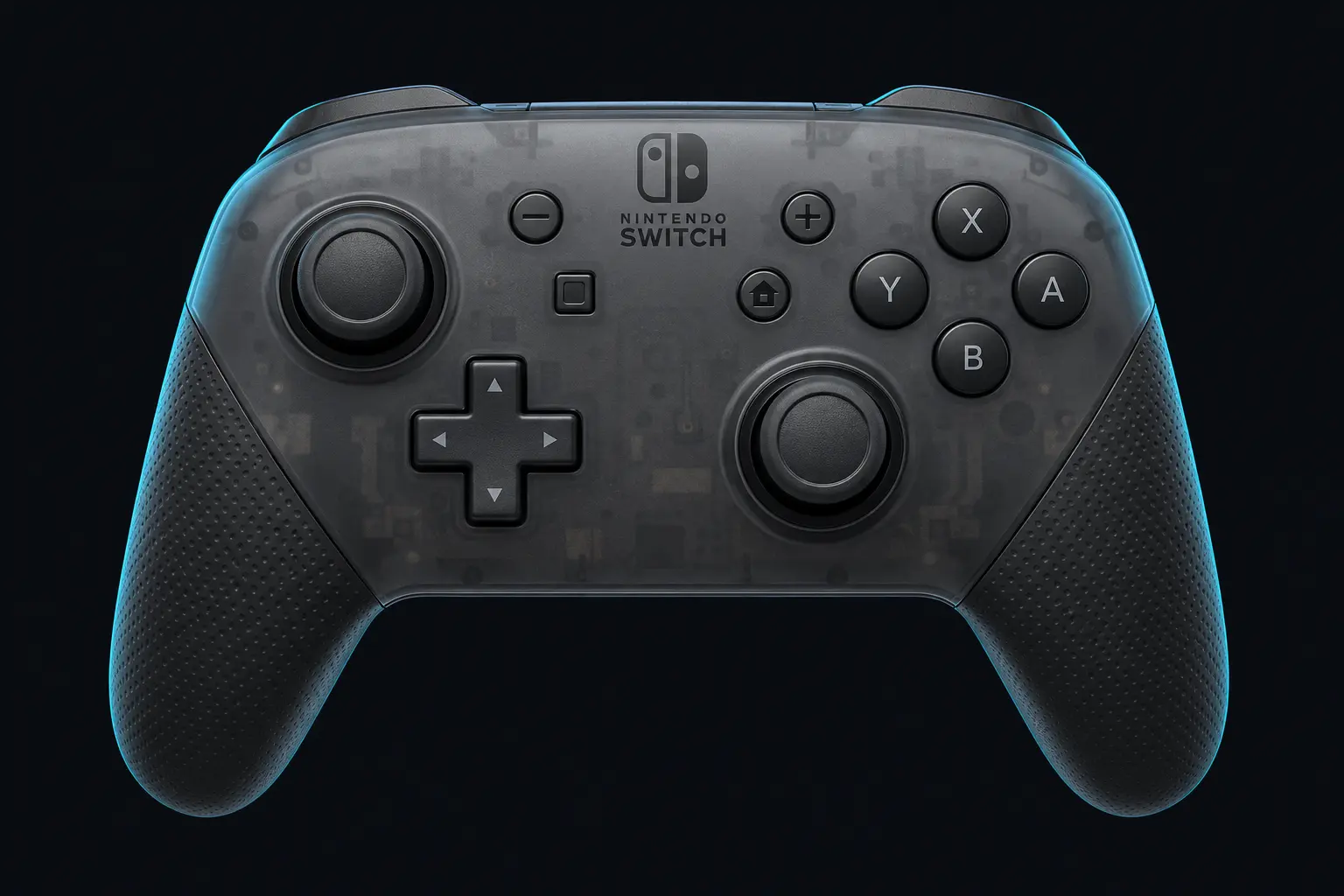
Test the inputs exposed by your browser, with familiar button labels and clear stick readings.
Live controller test
Waiting for a controller
Connect with USB or Bluetooth, focus this page and press a controller button.
Choose a model reference (optional)
Your selection is recorded separately from the browser’s device identity.
Choose a model for setup notes. This does not change your inputs or identify hardware automatically.
Press any controller button to begin
Layout illustration only. The button grid shows the actual inputs received.
L2 / LT
R2 / RT
Buttons detectedWaiting for input
Resting-stick measurement
This describes the input exposed by your browser. Firmware and remapping software can already apply deadzones. These readings do not certify hardware condition.
Raw readings & input history
Indices are shown as reported by the browser. Unknown layouts are not assigned stick or trigger names.
Waiting for controller input.
GUIDED CHECKUP
Check every control.
Buttons
Triggers
Stick drift
Stick range
Results
Connect a controller to begin.
Saved snapshots & comparison 0
Saved only when you choose, in this browser. Compare readings taken under the same conditions.
Connect and test your Nintendo-style controllers
Connect the controller to your computer with a supported USB or Bluetooth connection. Then press a button with this page focused. If no standard mapping appears, inspect raw axes and buttons in the advanced panel.
Choose the intended controller from the device menu.
Press each button and move both sticks.
Run a resting-stick measurement if the browser provides a standard mapping.
Save a snapshot with your connection and profile noted.
Mapping and feature limits
Nintendo-style face-button lettering differs from Xbox lettering. The label selector is visual only; game and remapping settings still determine the action. Digital trigger readings do not have a gradual analog range. Motion, NFC and console-specific haptics are not tested here.
A browser-reported device name may describe a virtual device instead of the controller in your hands. Get connection and mapping help →
Read Nintendo-style controls in context
The standard browser mapping describes positions and actions, while printed Nintendo face-button lettering differs from Xbox lettering. Choose the Nintendo label set if it helps you follow the physical controls, but check your game or remapper separately when an action feels swapped.
8BitDo and GuliKit alternatives
Use the 8BitDo guide or GuliKit guide for model-specific PC-mode and connection notes. A controller’s Switch mode and PC mode can expose different trigger behaviour or device names.
Digital ZL/ZR inputs need not sweep through intermediate values. Motion, NFC and console haptics are outside this tool. If software maps motion to a virtual stick, place the controller still before measuring resting offset and note that mapping in the report.
For an unfamiliar mapping, open raw readings. A detected controller can provide useful data even when the tester cannot safely assign standard stick names.