

PADDLES, PROFILES AND TRIGGERS
Xbox Elite Series 2 controller test
Check your installed controls and keep a baseline before changing a profile.
Connect with USB or Bluetooth, focus this page and press a controller button.
Choose your model for setup notes and suggested naming. The connected device above is reported separately by your browser.
Model setup guide →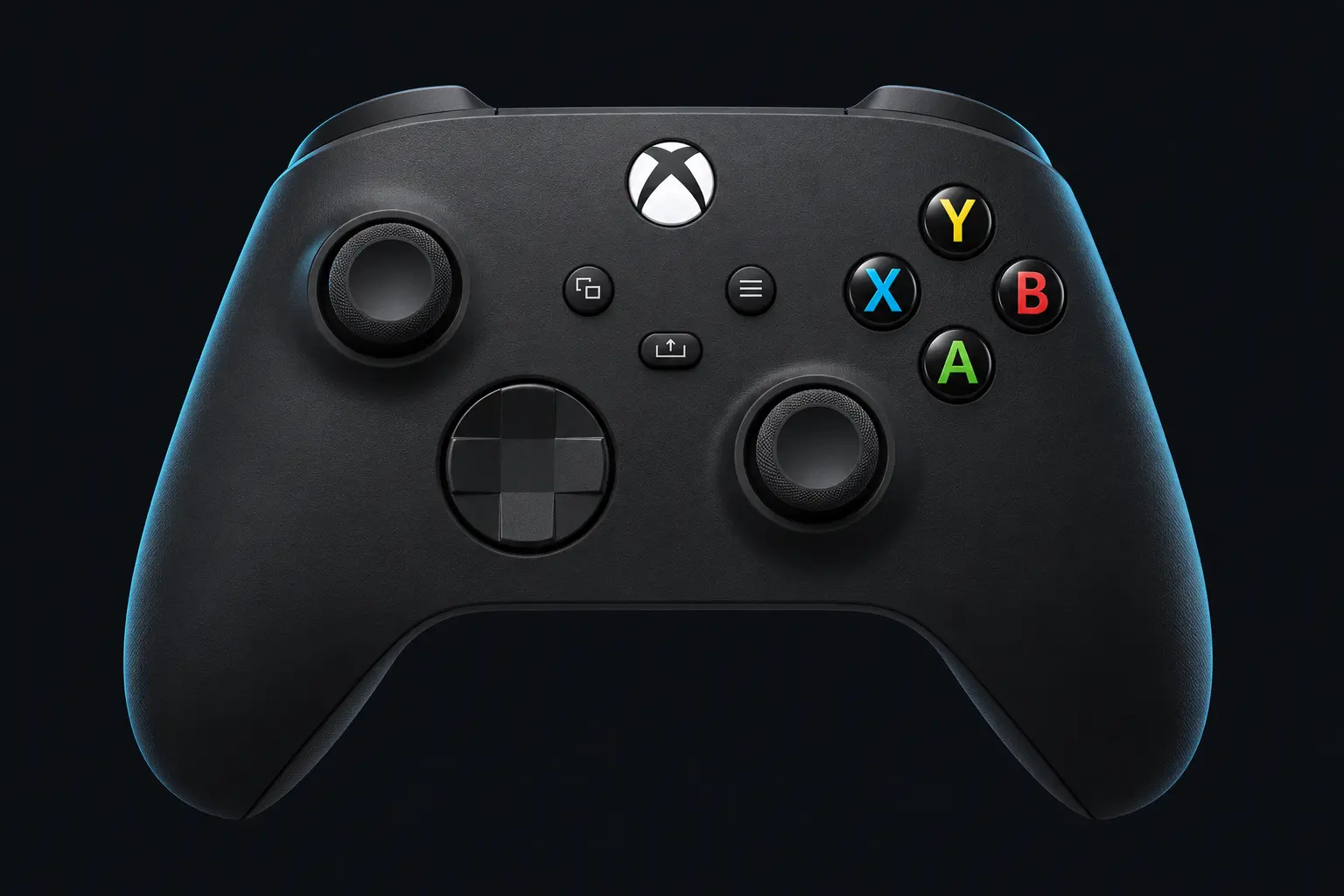
Product image unavailable.
Try the live diagram.
Choose a model to see its product photo. Live inputs appear in the buttons, triggers and stick plots.
Resting-stick measurement
This describes the input exposed by your browser. Firmware and remapping software can already apply deadzones. These readings do not certify hardware condition.
Raw readings & input history
Indices are shown as reported by the browser. Unknown layouts are not assigned stick or trigger names.
Waiting for controller input.
Check every control.
Step 1 of 5
- Buttons
- Triggers
- Stick drift
- Stick range
- Results
Connect a controller to begin.
KEEP YOUR BASELINE
Save or export this session
Snapshots stay in this browser. Export a report before clearing site data or moving to another device.
Saved snapshots & comparison 0
Choose two records to compare. Imported files are checked locally and never uploaded.
By ControllerTester / Digital Kingdom · Setup guide · Updated 30 October 2026
Elite Series 2 and Core setup
Elite Series 2 and Core use the same family of configurable controls, while package contents differ. Test the paddles and accessories fitted to your controller.
Xbox Accessories profile
Record the active profile and any assignments before testing. Check a normal button and its assigned paddle separately. Seeing the same browser index can confirm the mapping, not a missing independent input.
Trigger stops
Choose and record the stop position. Press and release each trigger slowly and inspect the exposed range. Compare again only after naming the changed setting.
Sticks and tension
Use the same physical setup and profile for each resting and range test. Move and release from several directions, leave the controller still and repeat. Keep the reported browser identity in the report even if you selected an Elite model reference.
A useful arrival check
- Confirm every accessible button produces its intended action.
- Test the installed paddles against their assignments.
- Check both triggers and stick movement.
- Save a named baseline with the connection and profile.
Sources and further help
Separate configuration from a physical symptom
If a paddle highlights the wrong action, compare its assignment in the active Xbox Accessories profile before changing hardware. If unwanted stick movement occurs only in one game, record that game’s sensitivity and deadzone separately. The tester sees the values supplied to the browser, which can already include driver or profile processing.
Repeat an arrival test later
Keep your original snapshot. Recreate its connection, profile, accessories and physical settings, then repeat each control in the same order. The comparison highlights differences and reports resting-offset changes in percentage points; it does not assign a pass/fail score. Describe any practical symptom alongside the numbers.
Why does Core not show more buttons?
The package name does not tell the browser which accessories are installed. A paddle that repeats a standard control can produce the same index as that control. Test the actual assignment and leave absent or untested controls clearly identified in your notes.