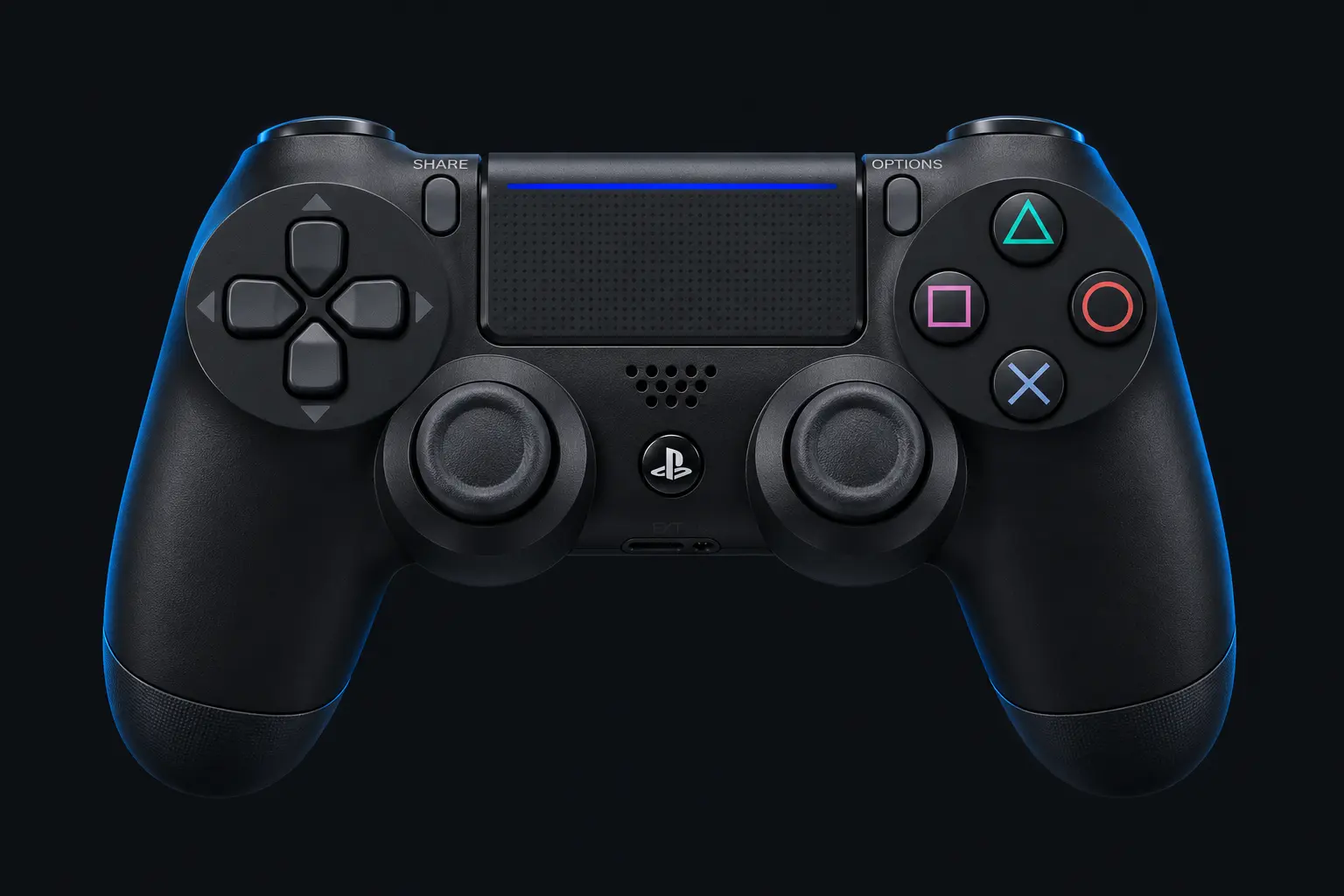
Test the inputs exposed by your browser, with familiar button labels and clear stick readings.
Live controller test
Waiting for a controller
Connect with USB or Bluetooth, focus this page and press a controller button.
Choose a model reference (optional)
Your selection is recorded separately from the browser’s device identity.
Choose a model for setup notes. This does not change your inputs or identify hardware automatically.
Press any controller button to begin
Layout illustration only. The button grid shows the actual inputs received.
L2 / LT
R2 / RT
Buttons detectedWaiting for input
Resting-stick measurement
This describes the input exposed by your browser. Firmware and remapping software can already apply deadzones. These readings do not certify hardware condition.
Raw readings & input history
Indices are shown as reported by the browser. Unknown layouts are not assigned stick or trigger names.
Waiting for controller input.
GUIDED CHECKUP
Check every control.
Buttons
Triggers
Stick drift
Stick range
Results
Connect a controller to begin.
Saved snapshots & comparison 0
Saved only when you choose, in this browser. Compare readings taken under the same conditions.
Connect and test your DualShock 4
Connect your DualShock 4 to the computer by USB or Bluetooth, focus this page and press a button. Use a USB cable that carries data if the controller charges but never appears.
Choose the intended controller from the device menu.
Press each button and move both sticks.
Run a resting-stick measurement if the browser provides a standard mapping.
Save a snapshot with your connection and profile noted.
Mapping and feature limits
When DS4Windows or another remapper is running, the browser may see a virtual Xbox-style controller, the physical controller or both. Select the intended device. Changing the label set does not change the underlying mapping. Touchpad gestures and motion sensors are not measured here.
A browser-reported device name may describe a virtual device instead of the controller in your hands. Get connection and mapping help →
Check a DualShock 4 with DS4Windows
Before testing, identify whether you want to inspect the physical DualShock 4 or the virtual controller generated by your profile. If both appear, press a button and choose the intended device. A virtual Xbox identity is a description of the output path.
Save a snapshot with the profile name and connection type. If you change a deadzone in DS4Windows, a second browser measurement may show the profile’s filtering rather than a physical change to the stick. Keep the underlying device and other settings consistent.
Older third-party PlayStation controllers
Check the Razer Raiju family and NACON Revolution family for model-specific PC-mode guidance. Similar PlayStation button labels do not imply identical drivers, wireless support or switch positions.
If the controller charges but never responds, try a known USB data cable and follow the connection checklist. If a touchpad gesture produces mouse movement, it may work correctly while remaining outside the gamepad button readings.