

CONTROLLER-SPECIFIC HELP
Xbox controllers tester
Test the inputs exposed by your browser, with familiar button labels and clear stick readings.
Connect with USB or Bluetooth, focus this page and press a controller button.
Choose your model for setup notes and suggested naming. The connected device above is reported separately by your browser.
Model setup guide →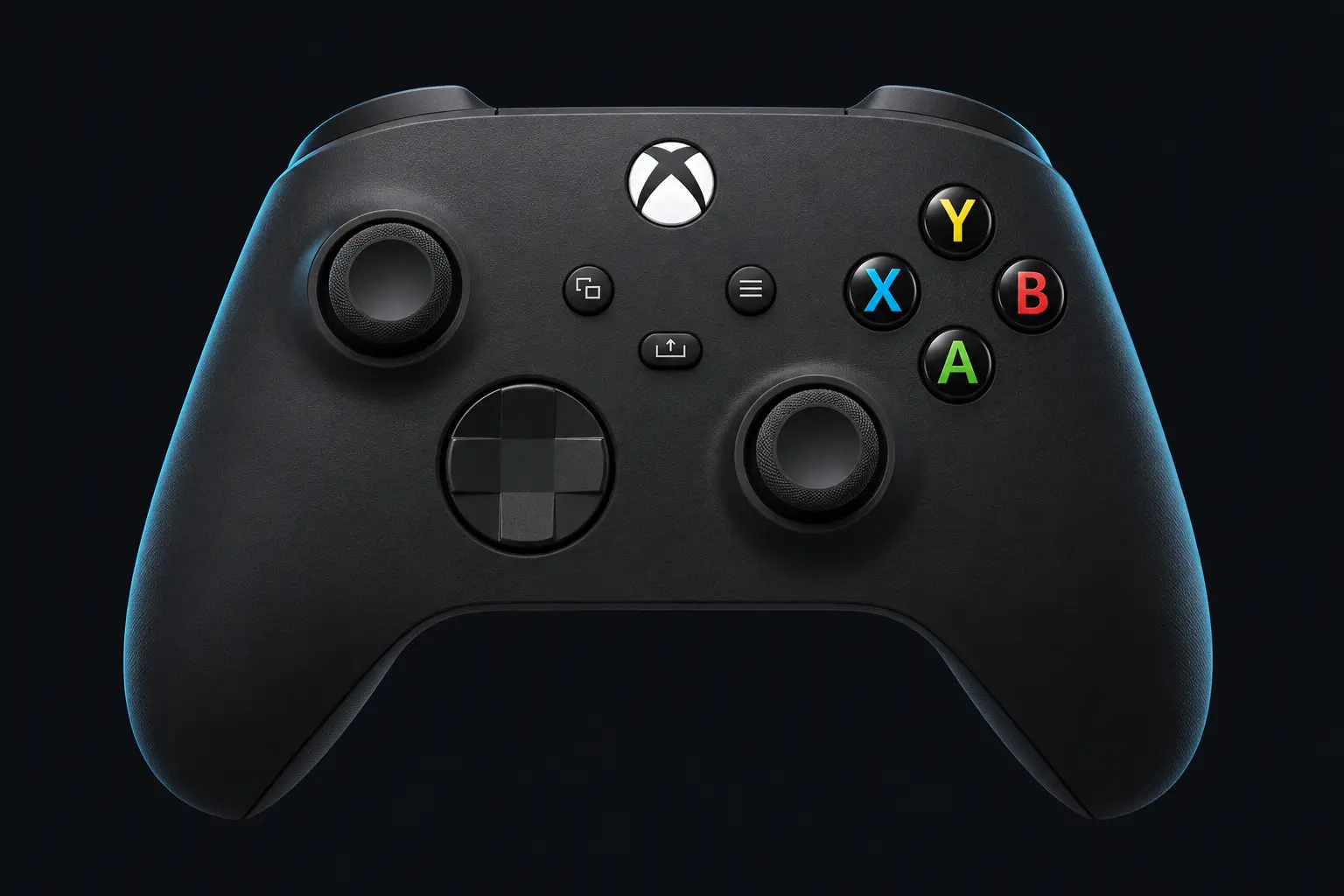
The diagram shows browser controls, not an exact product photograph. Extra controls may share an existing input.
Resting-stick measurement
This describes the input exposed by your browser. Firmware and remapping software can already apply deadzones. These readings do not certify hardware condition.
Raw readings & input history
Indices are shown as reported by the browser. Unknown layouts are not assigned stick or trigger names.
Waiting for controller input.
Check every control.
Step 1 of 5
- Buttons
- Triggers
- Stick drift
- Stick range
- Results
Connect a controller to begin.
KEEP YOUR BASELINE
Save or export this session
Snapshots stay in this browser. Export a report before clearing site data or moving to another device.
Saved snapshots & comparison 0
Choose two records to compare. Imported files are checked locally and never uploaded.
By ControllerTester / Digital Kingdom · Setup guide · Updated 30 October 2026
Connect and test your Xbox-style gamepads
Connect your controller to the computer using a supported USB or wireless connection. Once the operating system recognizes it, focus this browser tab and press a controller button.
- Choose the intended controller from the device menu.
- Press each button and move both sticks.
- Run a resting-stick measurement if the browser provides a standard mapping.
- Save a snapshot with your connection and profile noted.
Mapping and feature limits
The standard label set uses A/B/X/Y, LB/RB and LT/RT. Extra paddles can mirror other buttons or depend on the selected controller profile. A paddle does not have to appear as a separate browser button to work in a game. Wireless options vary by controller generation.
A browser-reported device name may describe a virtual device instead of the controller in your hands. Get connection and mapping help →
Xbox Elite Wireless Controller Series 2 and Core
For an Elite Series 2, note the selected Xbox Accessories profile, rear-paddle assignments and trigger-stop position. The Core package differs in included accessories, so test the controls fitted to your controller rather than assuming every package contains the same paddles.
Press a face button, release it, then press the paddle assigned to it. A matching browser index can be expected. For a trigger test, record the stop setting and profile before comparing the maximum reported value.
Xbox-compatible alternatives
Explore Razer Wolverine, SCUF Instinct and Valor, GameSir, Victrix, PowerA and Turtle Beach. Choose the exact platform edition: PC wireless support does not automatically mean wireless Xbox support.
Reference: Xbox Elite Series 2 Core information. Use the controller directory to select an optional model reference for your report.
Choose the exact Xbox generation
USB, Bluetooth and the Xbox Wireless connection are different options. Check which your controller and computer support. A successful PC receiver connection does not establish Bluetooth support, and an Xbox-style virtual name does not establish the physical model.
Elite Series 2 and Core: profiles, paddles and trigger stops →