

Wireless HORIPAD for Steam
XInput is documented over USB only. Bluetooth can expose a different input path.
CONNECTION & TESTING GUIDE
Test HORI gamepads and fightpads while keeping their physical layout and connection mode in context.
Connect with USB or Bluetooth, focus this page and press a controller button.
Choose your model for setup notes and suggested naming. The connected device above is reported separately by your browser.
Model setup guide →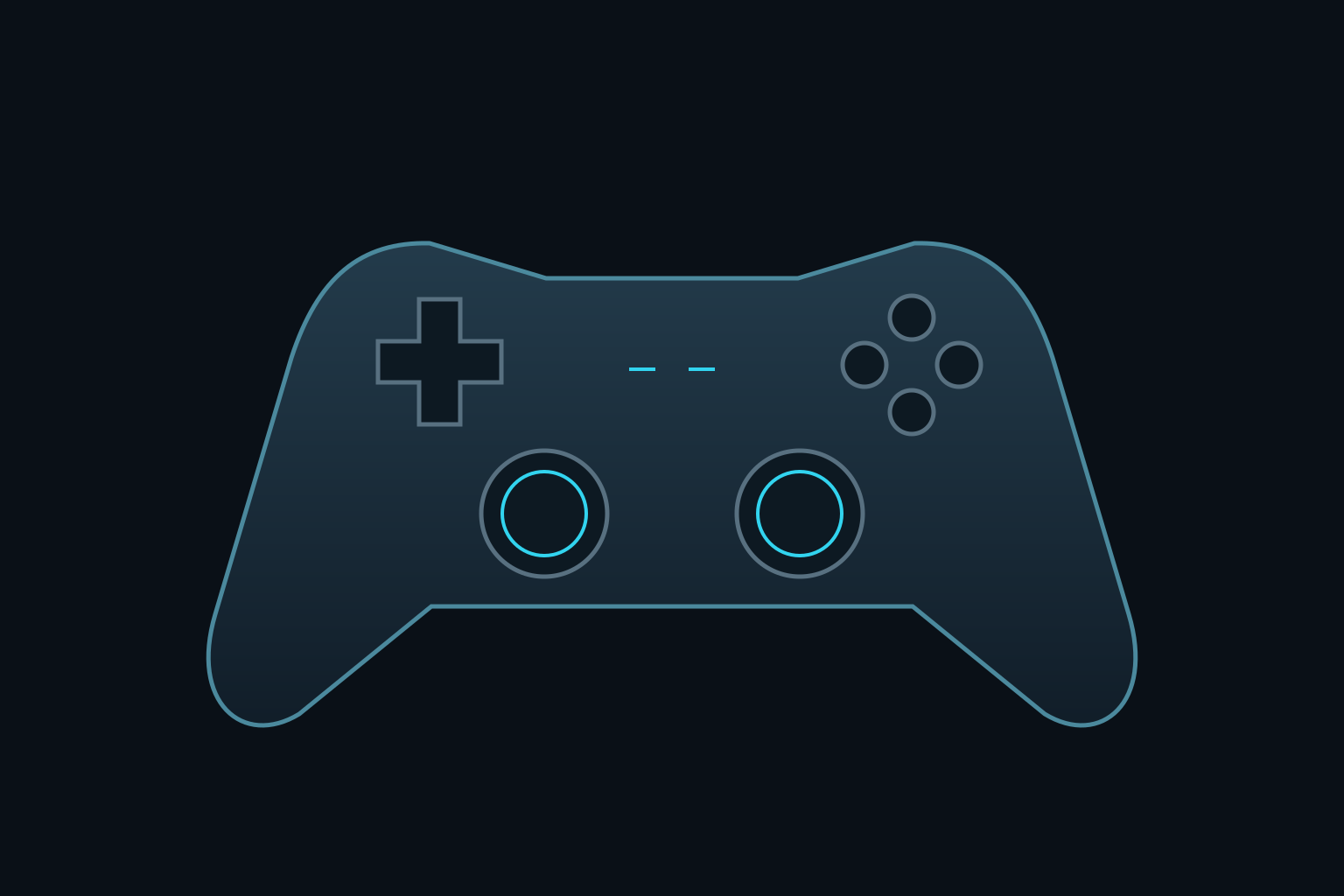
The diagram shows browser controls, not an exact product photograph. Extra controls may share an existing input.
This describes the input exposed by your browser. Firmware and remapping software can already apply deadzones. These readings do not certify hardware condition.
Indices are shown as reported by the browser. Unknown layouts are not assigned stick or trigger names.
Waiting for controller input.
Step 1 of 5
Connect a controller to begin.
KEEP YOUR BASELINE
Snapshots stay in this browser. Export a report before clearing site data or moving to another device.
Choose two records to compare. Imported files are checked locally and never uploaded.
Wireless HORIPAD for Steam supports XInput over USB, not Bluetooth, according to its support guidance. A Bluetooth connection therefore should not be assumed to produce the same standard gamepad layout.
Fighting Commander OCTA for Windows is a fightpad, not a conventional two-stick controller. Match the exact platform edition and switch settings before interpreting its button and axis counts.
MODEL NOTES
XInput is documented over USB only. Bluetooth can expose a different input path.
Fightpad layout: inspect actual button/axis responses rather than expecting two physical sticks.
For a fightpad, concentrate on the D-pad, face buttons, shoulders and any fitted stick. A standard-looking browser mapping is not proof that the device physically has two analog sticks or analog triggers.
Check directional inputs one at a time and then diagonally. If a mode switch changes whether a direction appears as buttons or axes, save a note and start a fresh comparison.
Steam Input can add a virtual mapping to HORIPAD for Steam. Record whether that software is active and select the responding device instead of assuming the first gamepad entry is the physical controller.
Check one variable at a time. For unwanted stick movement, release the sticks onto a stable surface and run the ten-second resting test. For a missing action, compare a direct button press with its rear-button assignment. Save a note identifying the active profile so a later result can be reproduced.
The browser-reported device name can describe a virtual gamepad. The optional model reference is your selection, not automatic hardware identification. Brand listing does not guarantee vibration, independent paddles or vendor-specific controls in your browser.
Documentation reviewed 29 October 2026. Setup guidance, not a hands-on product review or a certification of browser support.