

PRACTICAL TROUBLESHOOTING
Test The Action Behind The Paddle.
Test rear buttons and paddles by their assigned action, including gamepad, keyboard and mouse mappings.
By EmuCores · Troubleshooting guide · Updated 30 October 2026
Start With A Repeatable Observation
Many extra controls repeat another action instead of adding a new gamepad button. A paddle assigned to A can highlight the same browser index as A. That can be correct behavior even when the tester’s button count stays unchanged.
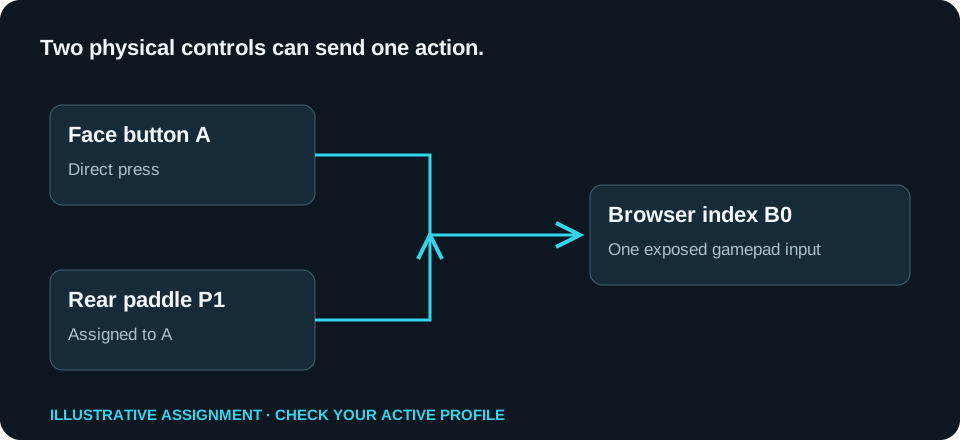
A Deliberate Paddle Check
- Open the controller software or profile display and identify the paddle’s assigned action.
- If it sends a gamepad button, press that ordinary button once and note the highlighted index.
- Release it fully. Press the paddle and look for the same response.
- Hold and release the paddle to check whether the exposed state changes consistently.
- Save the model, profile and assignment in a named snapshot.
Keyboard Or Mouse Assignments
A keyboard shortcut or mouse click may not produce a gamepad event. Test that action in the intended application. An empty gamepad reading does not establish that the paddle is broken.
Nothing Responds
Confirm the intended profile is active and the connection supports that configuration. Check any onboard versus software profile distinction in the exact model’s manual. Test a normal face button to establish whether the whole controller is missing or just that assignment.
Where To Look By Family
Elite Series 2 uses Xbox Accessories profiles; SCUF, Razer, NACON and Victrix have model-specific configuration tools or onboard assignments. Use the directory to choose the exact edition. Record the result without inventing extra button indices.