

PRACTICAL TROUBLESHOOTING
Works In Steam, Missing In The Browser?
Check controller visibility, Steam Input layouts and supported connections when a gamepad works in Steam but not an online tester.
By EmuCores · Troubleshooting guide · Updated 30 October 2026
Start With A Repeatable Observation
A game and a browser can receive different input paths. Steam Input may translate the controller into gamepad actions, keyboard events or mouse movement. A working game therefore does not prove that the browser is receiving a Gamepad API device.
Start With Browser Visibility
- Open the tester directly over HTTPS in a current desktop browser.
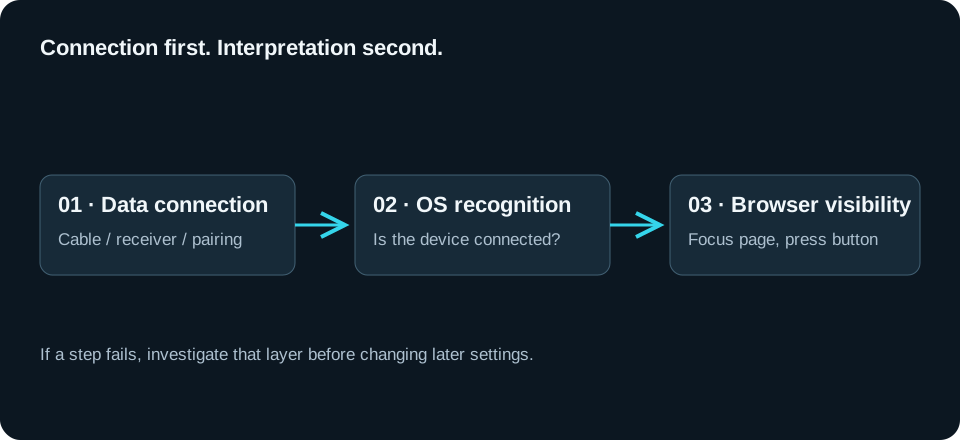
- Focus the page, then press a face button. Some browsers wait for controller interaction before exposing the device.
- Check the connected-device menu and raw readings, not only the illustrated layout.
- Confirm the manufacturer-supported PC connection. USB, a receiver and Bluetooth can expose different modes.
Inspect The Steam Input Layout
Identify the layout active for the desktop or application. A trackpad mapped to mouse movement is not a gamepad axis, and a button mapped to a keyboard key is not necessarily a gamepad button. Follow Steam’s layout instructions when your goal is a virtual gamepad output.
Check Physical-Device Hiding
If a remapper sees the controller but the browser does not, review any device-hiding rules. The remapper may be allowed to see a physical device that other applications cannot. Test the intended virtual output rather than changing unrelated browser settings.
Record A Controlled Comparison
Keep the connection fixed. Note the active software and layout, then change one relevant setting and try again. If raw input appears without named stick measurements, the mapping is non-standard rather than absent.
Steam Controller model guidance → · Full detection checklist →