

PRACTICAL TROUBLESHOOTING
Separate The Label From The Action.
Separate button naming, physical position and game bindings when controller buttons appear swapped or trigger the wrong action.
By EmuCores · Troubleshooting guide · Updated 30 October 2026
Start With A Repeatable Observation
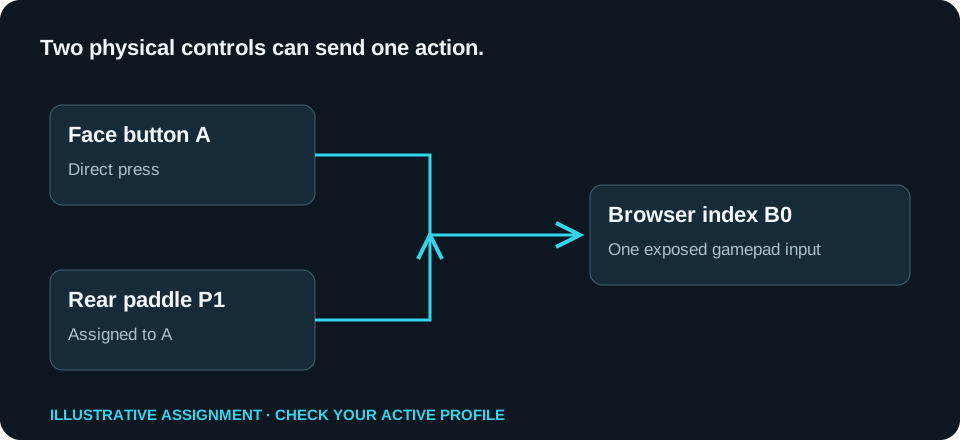
A button can have a printed name, a browser index and an assigned game action. Those are related but different. Nintendo and Xbox lettering differs by position, and a remapper can change the action without changing the physical button.
Test One Position At A Time
- Choose the exact model in the tester.
- Press the bottom face button, then the right, left and top buttons separately.
- Note which browser index highlights. Use Button indices naming if letter names are confusing.
- Select the naming style that helps you read the controller.
- Check the actual action in the affected game and inspect its bindings if it remains wrong.
Only One Game Is Wrong
Start with that game’s input settings and its active Steam Input or remapper profile. Compare with a known working application before treating the physical controller as faulty.
The Label Changes After Reconnecting
A platform switch or connection change may expose a different mode. Check the device name, mapping and profile again. Save separate snapshots instead of combining observations from both modes.
Extra Controls
Paddles, turbo buttons and shortcut controls may repeat existing gamepad actions or send another input type. Follow the paddle checklist rather than assuming each physical control needs a new index.