CHOOSE FOR YOUR GAMES
PC Controllers: Compare The Right Details
Build a shortlist around your platform, controls and connection.
Build A Shortlist
Start with Windows connection and the games you play. The shortlist below is a set of documented alternatives, not a hands-on performance ranking. Use the comparison tool to inspect connections and setup requirements, then check current manufacturer information.
 ControllerTester illustration
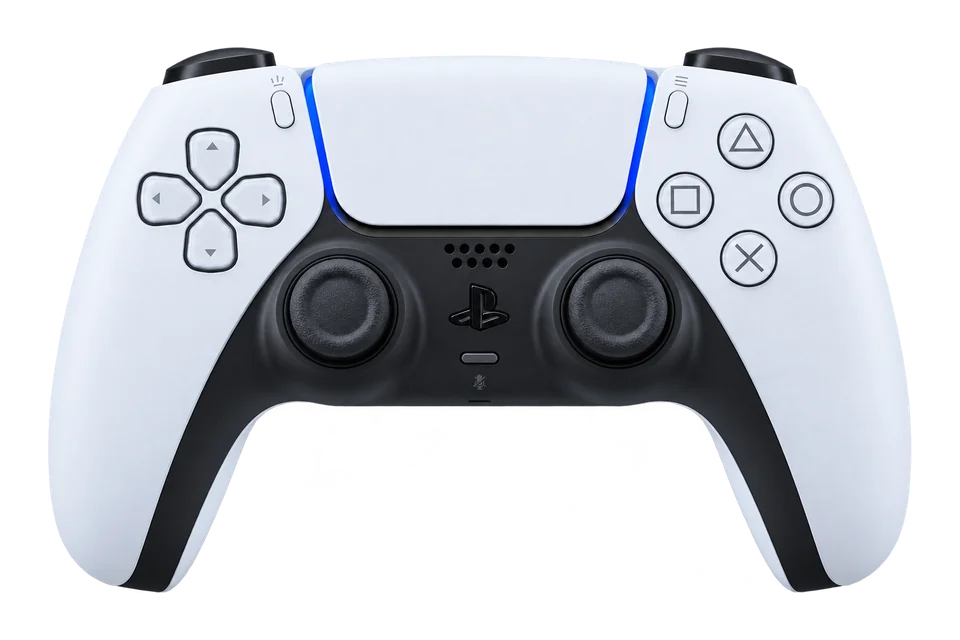
PlayStationDualSense
Symmetrical sticks, a central touchpad and Sony’s PS5 controls make the DualSense a familiar starting point for PS5 and PC testing.
Specifications & testing tips
- Platforms
- PC / PS5
- PC connections
- USB / Bluetooth
- Configuration
- PlayStation Accessories (supported model)
- Triggers
- Analog; adaptive resistance in supported games
- Extra controls
- Touchpad click, Create and microphone mute
- Feedback
- Haptic feedback in supported games; browser rumble is a separate check
Before You Test
Use USB data or supported Bluetooth. Touchpad click may appear; touch positions and adaptive triggers are outside this test.
Start with the normal manufacturer-supported PC connection. Record firmware, connection and profile before saving a snapshot.
What To Check Here
- Press each face button and direction once. Use the raw input list if the browser has no standard mapping.
- Move the sticks around their range, release them and run the resting-stick test. Save the active profile alongside the results.
- Squeeze and release both triggers. A short-travel or digital mode can change the values you observe.
Rear buttons can repeat existing inputs. Browser rumble does not test motion sensors, audio or adaptive-trigger resistance.
Setup documentation ↗
Consider it for: PS5 players who want the familiar Sony layout and supported-game adaptive triggers.
Check before buying: On PC, check feature support in each game and connection; basic button detection does not establish advanced haptics.
Alternative: DualSense Edge adds rear controls and replaceable stick modules if those are priorities.
Compare these models →
 ControllerTester illustration
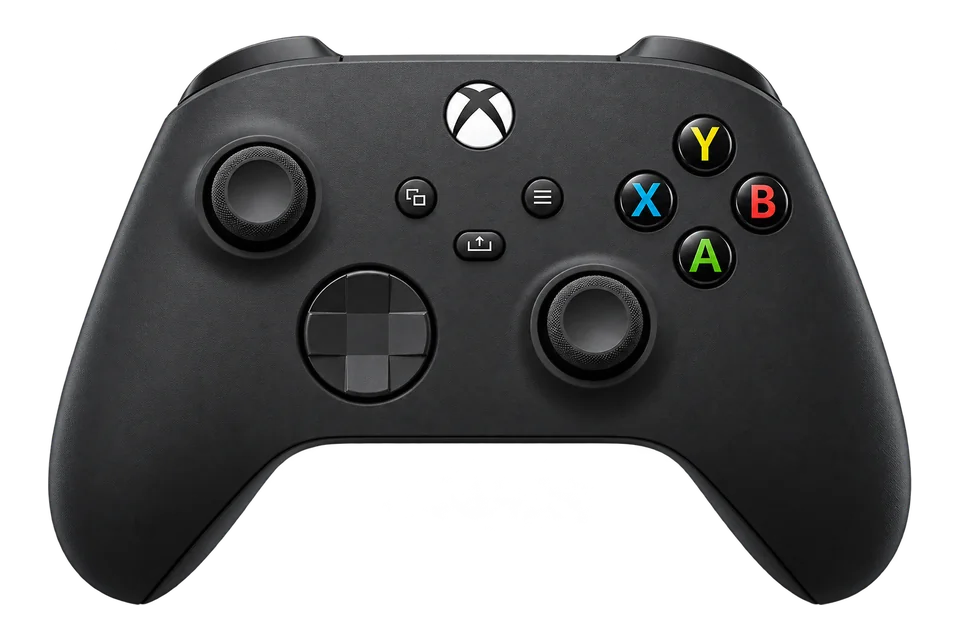
XboxXbox Wireless Controller
Microsoft’s standard Xbox controller uses offset sticks and ABXY face buttons. Check the exact generation before choosing a wireless connection.
Specifications & testing tips
- Platforms
- PC / Xbox
- PC connections
- Check edition
- Configuration
- Xbox Accessories
- Layout
- Offset sticks; Xbox ABXY
- Triggers
- Analog LT and RT
- Revision note
- Bluetooth availability and USB connector vary by generation
Before You Test
Use the connection supported by your exact generation. A standard mapping provides A/B/X/Y labels and LT/RT values.
Start with the normal manufacturer-supported PC connection. Record firmware, connection and profile before saving a snapshot.
What To Check Here
- Press each face button and direction once. Use the raw input list if the browser has no standard mapping.
- Move the sticks around their range, release them and run the resting-stick test. Save the active profile alongside the results.
- Squeeze and release both triggers. A short-travel or digital mode can change the values you observe.
Rear buttons can repeat existing inputs. Browser rumble does not test motion sensors, audio or adaptive-trigger resistance.
Setup documentation ↗
Consider it for: Players seeking the familiar Xbox layout across Xbox and supported PC games.
Check before buying: Confirm the generation, wireless method and power accessories included in the package.
Alternative: Elite Series 2 adds paddles, profiles and adjustable stick tension.
Compare these models →
 ControllerTester illustration
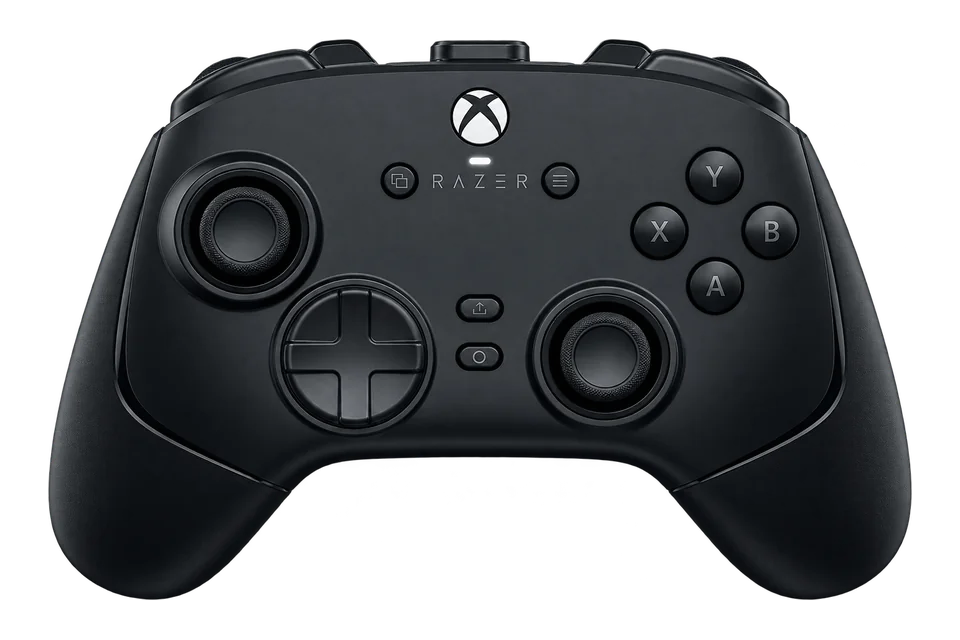
RazerWolverine V4 Pro
A wireless Xbox and PC model with capacitive sticks, removable rear buttons and a choice of click-style or full-travel triggers.
Specifications & testing tips
- Platforms
- PC / Xbox
- PC connections
- USB / Receiver
- Configuration
- Razer model-specific support
- Stick technology
- Capacitive sensors
- Triggers
- Dual-mode Razer Pro HyperTriggers
- Extra controls
- Four removable rear buttons; two extra bumpers
Before You Test
Current Xbox/PC family: record fitted rear buttons, trigger actuation and Synapse profile. Browser sampling cannot verify an 8K specification.
Compare each rear-button assignment with its face-button action. Use the same trigger mode for the baseline and retest.
What To Check Here
- Press each face button and direction once. Use the raw input list if the browser has no standard mapping.
- Move the sticks around their range, release them and run the resting-stick test. Save the active profile alongside the results.
- Squeeze and release both triggers. A short-travel or digital mode can change the values you observe.
Rear buttons can repeat existing inputs. Browser rumble does not test motion sensors, audio or adaptive-trigger resistance.
Setup documentation ↗
Product specifications ↗
Illustration reference: Model appearance reference. AI-generated illustration based on the model reference; small details and colour may vary. Colour and included accessories may vary.
Consider it for: Xbox/PC players who want extra rear controls and bumpers with selectable trigger behaviour.
Check before buying: Check platform-specific wireless support and the required configuration software for this exact revision.
Alternative: GameSir G7 Pro is worth comparing for its connection choices and extra-control arrangement.
Compare these models →
 ControllerTester illustration
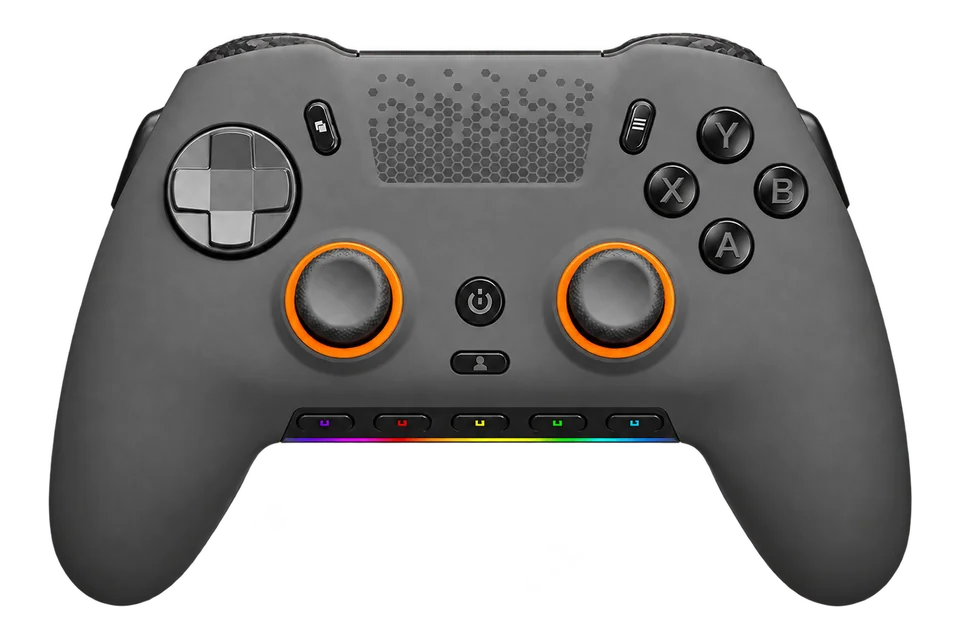
SCUFEnvision Pro
A PC-focused controller with rear paddles, side buttons and programmable G-Keys. Distinguish its software mappings from gamepad inputs.
Specifications & testing tips
- Platforms
- PC
- PC connections
- USB / Receiver
- Configuration
- CORSAIR iCUE / model-specific configuration
- Extra controls
- Four paddles, two side-action buttons, five G-Keys
- Triggers
- Adjustable instant mode
- Revision note
- Hall-effect V2 pictured; original Envision hardware differs
- Software
- CORSAIR iCUE / exact-revision setup guidance
Before You Test
PC family: record driver/software setup and hardware or software profile before checking rear or side assignments.
Record the controller revision and paddle profile. A keyboard or macro assignment may not create a separate gamepad button.
What To Check Here
- Press each face button and direction once. Use the raw input list if the browser has no standard mapping.
- Move the sticks around their range, release them and run the resting-stick test. Save the active profile alongside the results.
- Squeeze and release both triggers. A short-travel or digital mode can change the values you observe.
Rear buttons can repeat existing inputs. Browser rumble does not test motion sensors, audio or adaptive-trigger resistance.
Setup documentation ↗
Product specifications ↗
Illustration reference: Model appearance reference. AI-generated illustration based on the model reference; small details and colour may vary. V2 edition pictured; original Envision Pro has different stick hardware.
Consider it for: PC players who want paddles, side controls and programmable shortcuts.
Check before buying: Check revision-specific stick hardware and software requirements. Keyboard shortcuts will not necessarily appear as extra gamepad buttons.
Alternative: Xbox Elite Series 2 is worth comparing if Xbox console use is also important.
Compare these models →
 ControllerTester illustration
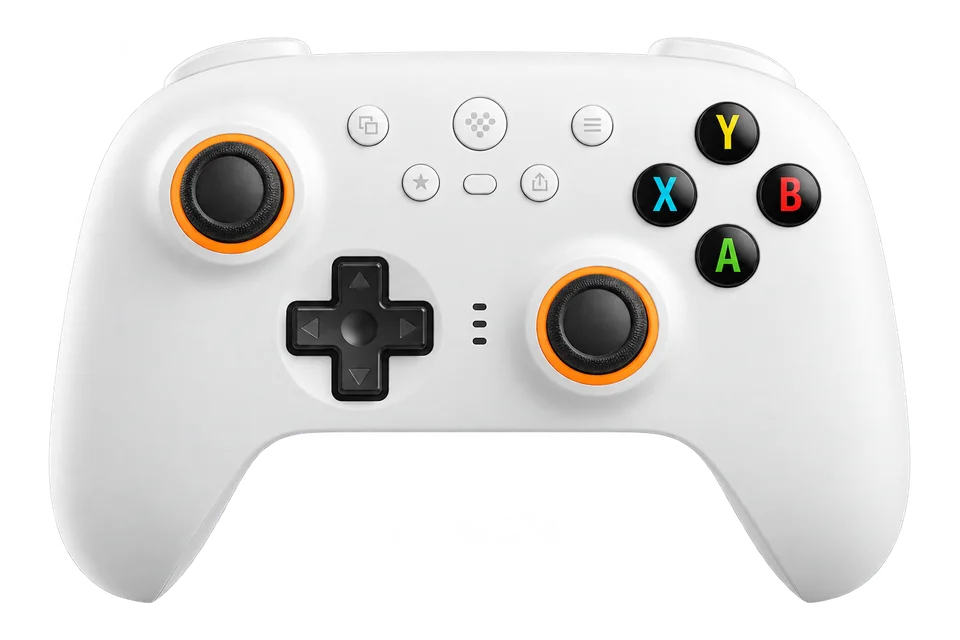
8BitDoUltimate 2 Wireless
Ultimate 2 Wireless adds TMR sticks, dual-mode triggers and extra bumpers to 8BitDo’s dock-equipped controller format.
Specifications & testing tips
- Platforms
- PC
- PC connections
- USB / Receiver
- Configuration
- 8BitDo Ultimate Software, edition varies
- Stick technology
- TMR
- Triggers
- Hall-effect analog or tactile mode
- Extra controls
- Two rear buttons; L4 / R4 bumpers
- Software
- 8BitDo Ultimate Software V2
Before You Test
Record the Ultimate Software V2 profile and zero-deadzone setting before comparing stick measurements.
Note the platform mode, firmware and button-swap setting. Nintendo and Xbox letter arrangements can differ even when the browser indices agree.
What To Check Here
- Press each face button and direction once. Use the raw input list if the browser has no standard mapping.
- Move the sticks around their range, release them and run the resting-stick test. Save the active profile alongside the results.
- Squeeze and release both triggers. A short-travel or digital mode can change the values you observe.
Rear buttons can repeat existing inputs. Browser rumble does not test motion sensors, audio or adaptive-trigger resistance.
Setup documentation ↗
Product specifications ↗
Illustration reference: Model appearance reference. AI-generated illustration based on the model reference; small details and colour may vary. Colour and included accessories may vary.
Consider it for: PC players who want a charging dock, TMR sticks and selectable analog/tactile triggers.
Check before buying: For Windows, follow the documented USB or 2.4 GHz connection. Do not confuse this edition with Ultimate 2 Bluetooth or 2C.
Alternative: GameSir G7 Pro offers a different extra-control layout and an Xbox-capable edition to compare.
Compare these models →
 ControllerTester illustration
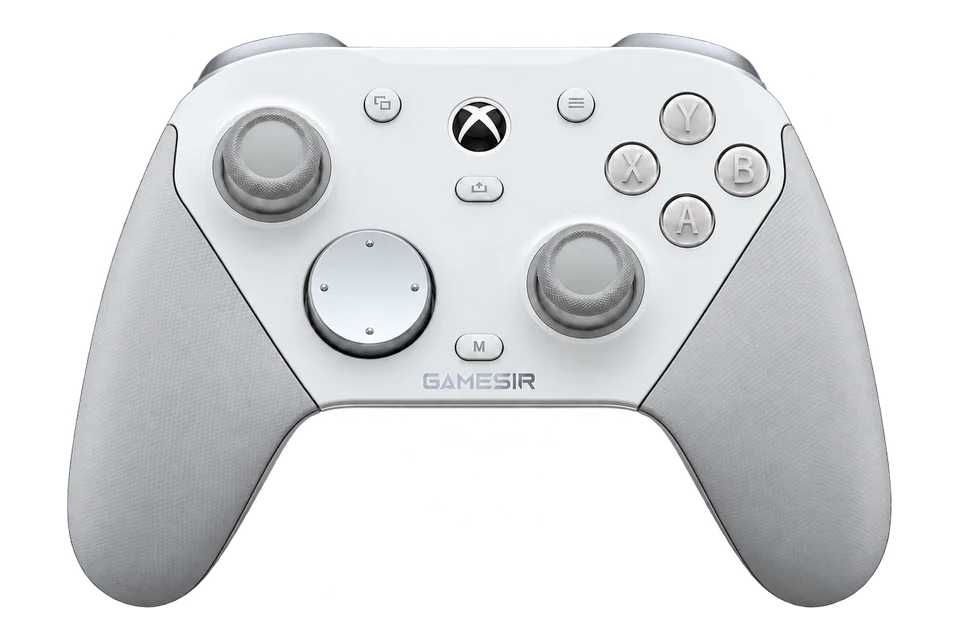
GameSirG7 Pro
G7 Pro combines TMR sticks with switchable analog and microswitch triggers. PC wireless support does not by itself establish wireless Xbox support.
Specifications & testing tips
- Platforms
- PC / Xbox
- PC connections
- USB / Receiver
- Configuration
- GameSir Nexus
- Stick technology
- TMR
- Triggers
- Hall-effect analog or microswitch mode
- Feedback
- Four rumble motors
- Software
- GameSir Nexus
Before You Test
Distinguish PC wireless use from the supported Xbox connection. Record trigger-stop and software profile settings.
Record the Nexus or Connect profile that belongs to this exact model. Disable an intentional turbo assignment before checking a single press and release.
What To Check Here
- Press each face button and direction once. Use the raw input list if the browser has no standard mapping.
- Move the sticks around their range, release them and run the resting-stick test. Save the active profile alongside the results.
- Squeeze and release both triggers. A short-travel or digital mode can change the values you observe.
Rear buttons can repeat existing inputs. Browser rumble does not test motion sensors, audio or adaptive-trigger resistance.
Setup documentation ↗
Product specifications ↗
Illustration reference: Model appearance reference. AI-generated illustration based on the model reference; small details and colour may vary. Colour and included accessories may vary.
Consider it for: Players comparing TMR sticks, selectable trigger modes and PC/Xbox use.
Check before buying: Tri-Mode and Wireless editions have different Xbox connection options. Match the full product name and manual before buying.
Alternative: 8BitDo Ultimate 2 Wireless is a PC-focused alternative to compare if console use is unnecessary.
Compare these models →
Compare The Tradeoffs That Affect Your Games
- Platform and connection: verify the exact licensed edition. PC wireless support does not automatically mean wireless console support.
- Buttons and triggers: compare paddle placement and assignments, long analog travel and instant-trigger options.
- Comfort: check size, weight, stick placement and return terms. A browser test cannot measure how the grip fits your hands.
- Ownership: compare software support, receiver/cable requirements, warranty and replacement parts.
Test Your Purchase When It Arrives
Run the guided checkup and save a baseline with the exact model, connection and profile. A documented arrival test can help explain a later change in behavior.
Evidence And Commercial Links
Setup facts come from the linked manufacturers. We have not assigned performance scores or claimed physical testing of these models. Links marked Affiliate may earn a commission; ordinary manufacturer references are not automatically affiliate links. Read the editorial and affiliate policy.
Compare two models →

