Use the same connection, firmware and profile when repeating a check. These measurements describe browser input and do not assign a hardware health score.
Choose a guided measurement.
Trigger Travel · Last 6 Seconds
Slowly squeeze and release each trigger. A digital or instant-trigger mode can jump directly between endpoints.
— Left trigger– – Right trigger
Observed Press / Release Counts
↓ Presses · ↑ Releases. Counts start at observed state transitions; a control already held when sampling begins has no recorded press. Brief events between browser samples can be missed.
How to read these measurements
The guided sweep records the greatest radius in each of 32 direction sectors. A direction counts as covered at radius 0.75. Outline deviation is the mean absolute difference from radius 1, shown only after all directions are covered. An intended square response can have higher deviation.
Centring records four releases per stick: left, right, up and down. After input returns below radius 0.5, it settles for 0.4 seconds and averages the following 0.4 seconds, with at least five samples. Position spread is the greatest distance from the average of those four positions. Filtering can affect all results. This is not a latency or hardware polling-rate test.
Connect a controller to check browser rumble support.
Did you feel the vibration?
Resting-Stick Measurement
This describes the input exposed by your browser. Firmware and remapping software can already apply deadzones. These readings do not certify hardware condition.
Raw readings & input history
Indices are shown as reported by the browser. Unknown layouts are not assigned stick or trigger names.
Waiting for controller input.
GUIDED CHECKUP
Check Every Control.
Step 1 of 5
Buttons
Triggers
Stick drift
Stick range
Results
Connect a controller to begin.
Save, export or compare this session
KEEP YOUR BASELINE
Save Or Export This Session
Stored on this device
Snapshots stay in this browser. Export a report before clearing site data or moving to another device.
Saved snapshots & comparison 0
Choose two records to compare. Imported files are checked locally and never uploaded.
By EmuCores · Setup guide · Updated 30 October 2026
Connect Your SCUF Controller
SCUF spans several platforms: Reflex and Omega target PlayStation use, Instinct and Valor target Xbox use, and Envision and Nemesis are PC families. Verify the specific wired or wireless edition before choosing a connection.
For Envision, use the current model-specific driver and software instructions. SCUF provides driver downloads as well as iCUE options, so installing every available application is not a reliable first troubleshooting step.
Confirm the controller’s platform mode and supported connection. Use a USB data cable or the receiver specified for that exact model.
Focus this page, press a face button and choose the responding device from the connected-controller menu.
Press and release each control. Check raw indices if the device has no standard mapping.
Record your connection, software profile and trigger-stop setting before saving a snapshot.
Model setup at a glance — PC connection guidance
Model
Connection to check
Setup / interpretation
Reflex Pro
USB / Bluetooth
Record the paddle profile. Browser input testing does not test adaptive-trigger resistance. Manufacturer guidance
Reflex FPS
USB / Bluetooth
Instant triggers differ from long-travel analog triggers. A short on/off response may be intentional. Manufacturer guidance
Instinct Pro
USB / Bluetooth / Receiver
An Xbox-family reference: compare paddle assignments and trigger settings with the active controller profile. Manufacturer guidance
Envision Pro
USB / Receiver
PC family: record driver/software setup and hardware or software profile before checking rear or side assignments. Manufacturer guidance
Valor Pro
USB / Receiver / Bluetooth
Check the wired or wireless edition and its current manual. Record instant-trigger and paddle configuration. Manufacturer guidance
Omega
USB / Receiver
PlayStation-family reference: use its own manual and connection guidance rather than assuming Reflex setup is identical. Manufacturer guidance
Nemesis Pro 8K
Check edition
Newer PC-family reference. Check availability and the exact edition with SCUF; this tool cannot verify an 8K polling specification. Manufacturer guidance
Connections vary by edition and operating system. This table records setup guidance, not a physically verified browser result.
MODEL NOTES
Choose Your SCUF
ControllerTester illustration
SCUF
Reflex Pro
USB · Bluetooth
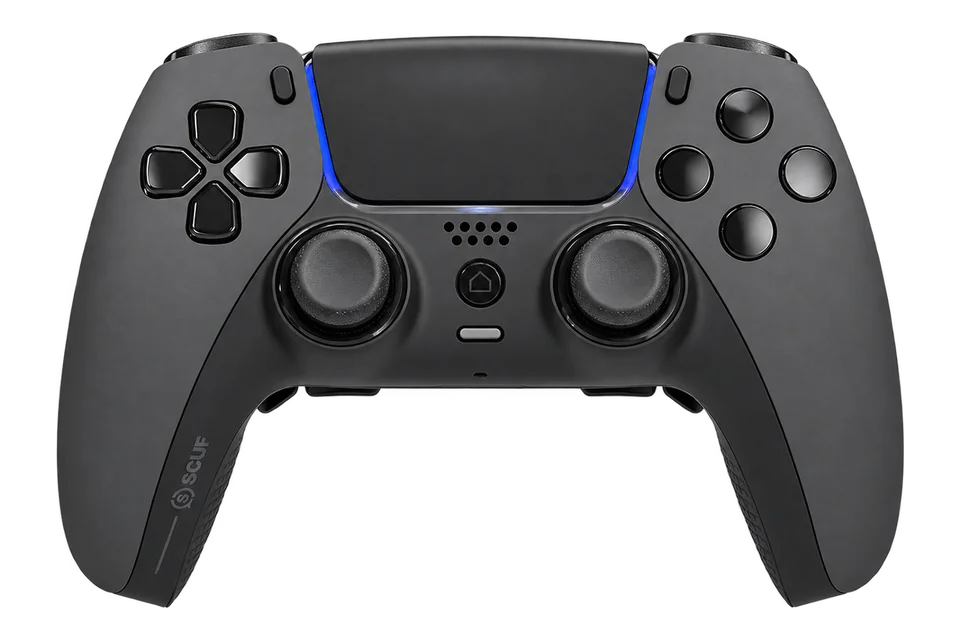
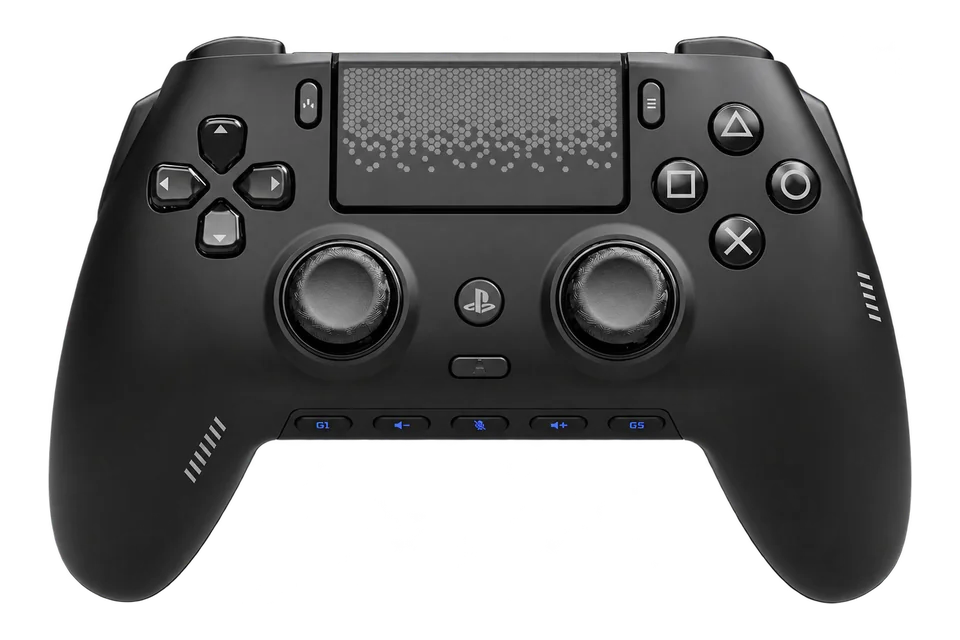
Reflex Pro keeps the DualSense-style PS5 experience while adding four remappable rear paddles and grip customization.
Specifications & testing tips
Platforms
PC / PS5
PC connections
USB / Bluetooth
Configuration
SCUF model-specific driver/profile tools
Extra controls
Four remappable rear paddles
Triggers
Adaptive triggers
Feedback
Vibration / haptics retained
Revision note
Check the original order for stick upgrades
Before You Test
Record the paddle profile. Browser input testing does not test adaptive-trigger resistance.
Record the controller revision and paddle profile. A keyboard or macro assignment may not create a separate gamepad button.
What To Check Here
Press each face button and direction once. Use the raw input list if the browser has no standard mapping.
Move the sticks around their range, release them and run the resting-stick test. Save the active profile alongside the results.
Squeeze and release both triggers. A short-travel or digital mode can change the values you observe.
Rear buttons can repeat existing inputs. Browser rumble does not test motion sensors, audio or adaptive-trigger resistance.
Illustration reference: Model appearance reference. AI-generated illustration based on the model reference; small details and colour may vary. Official Reflex family launch image; the image does not establish the pictured unit's Pro grip or stick revision.
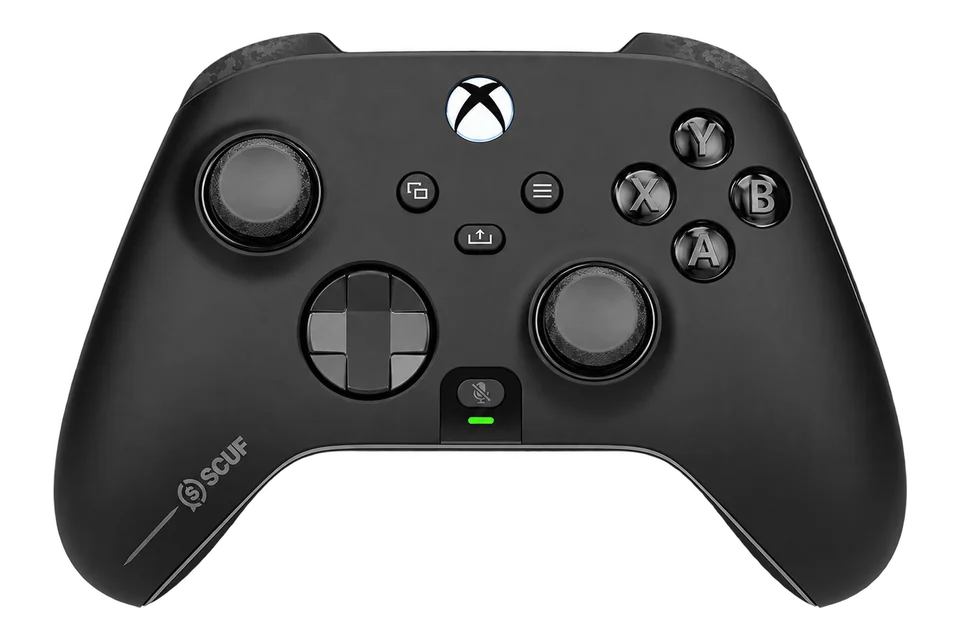
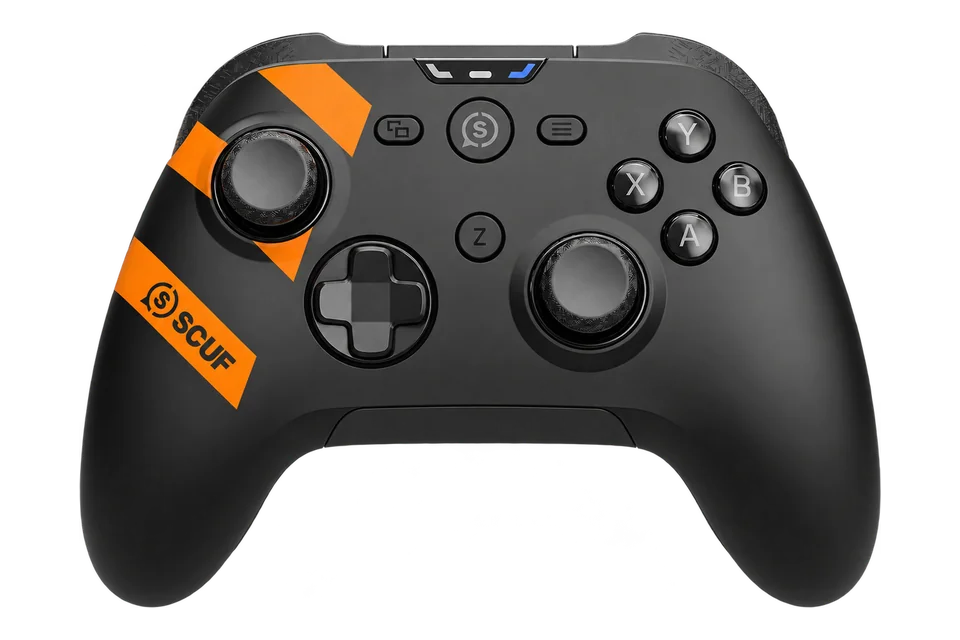
Illustration reference: Model appearance reference. AI-generated illustration based on the model reference; small details and colour may vary. TMR edition pictured; original Reflex FPS has different stick hardware.
Illustration reference: Model appearance reference. AI-generated illustration based on the model reference; small details and colour may vary. Colour and included accessories may vary.
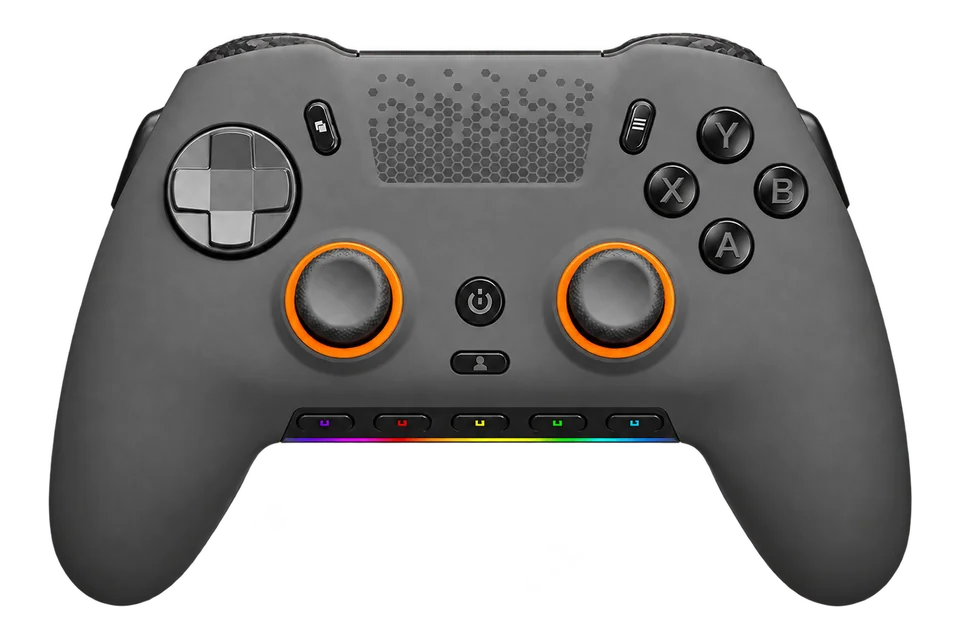
Illustration reference: Model appearance reference. AI-generated illustration based on the model reference; small details and colour may vary. V2 edition pictured; original Envision Pro has different stick hardware.
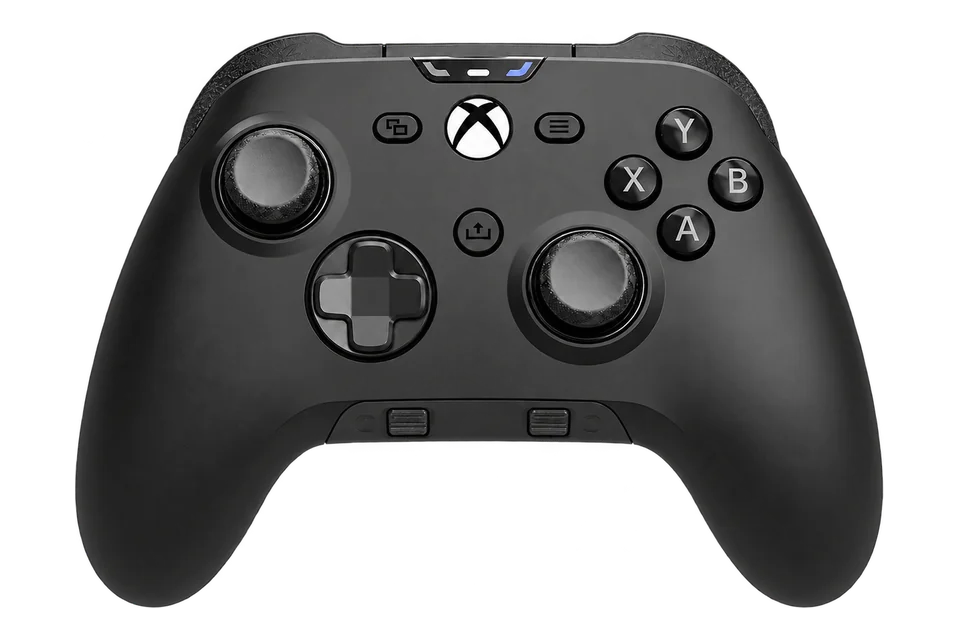
Illustration reference: Model appearance reference. AI-generated illustration based on the model reference; small details and colour may vary. Wired edition pictured; Wireless differs in connectivity and stick hardware.
Illustration reference: Model appearance reference. AI-generated illustration based on the model reference; small details and colour may vary. Colour and included accessories may vary.
Illustration reference: Model appearance reference. AI-generated illustration based on the model reference; small details and colour may vary. Colour and included accessories may vary.
A SCUF paddle may repeat an existing gamepad control. Envision assignments can also depend on the software or hardware profile. Press the assigned face button and then the paddle separately; the same highlighted browser index can be the intended result.
Reflex FPS instant triggers and Reflex Pro adaptive triggers are different hardware configurations. Instant controls can report a rapid on/off action instead of the long analog sweep expected from another controller. Compare against the exact model’s intended behaviour.
For newer families, check the current manual and software download before using older SCUF setup instructions. We include model references for troubleshooting, without treating a new product listing as proof of stock, popularity or hands-on testing.
Turn A Reading Into A Useful Comparison
Check one variable at a time. For unwanted stick movement, release the sticks onto a stable surface and run the ten-second resting test. For a missing action, compare a direct button press with its rear-button assignment. Save a note identifying the active profile so a later result can be reproduced.
The browser-reported device name can describe a virtual gamepad. The optional model reference is your selection, not automatic hardware identification. Brand listing does not guarantee vibration, independent paddles or vendor-specific controls in your browser.
A paddle can repeat an ordinary gamepad button or send a keyboard/mouse action. Test its configured action. A new gamepad index is not required for a remapped paddle to work.
Why does Reflex FPS trigger input jump?
The FPS edition uses instant triggers. Expecting the long analog sweep of a different model can make normal behavior look faulty. Check the exact model and trigger setting before drawing a conclusion.
Documentation reviewed 29 October 2026. Setup guidance, not a hands-on product review or a certification of browser support.


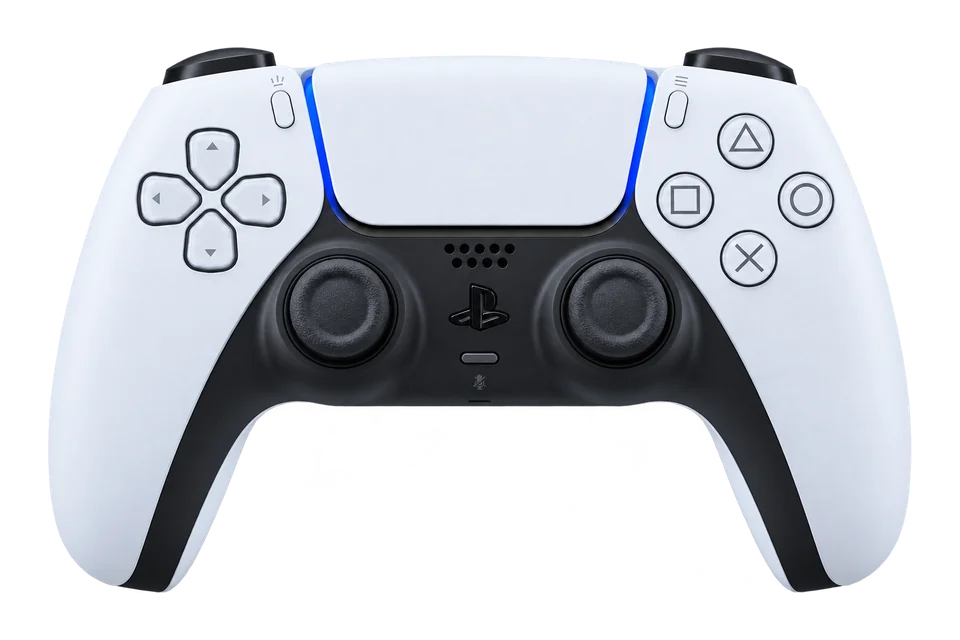
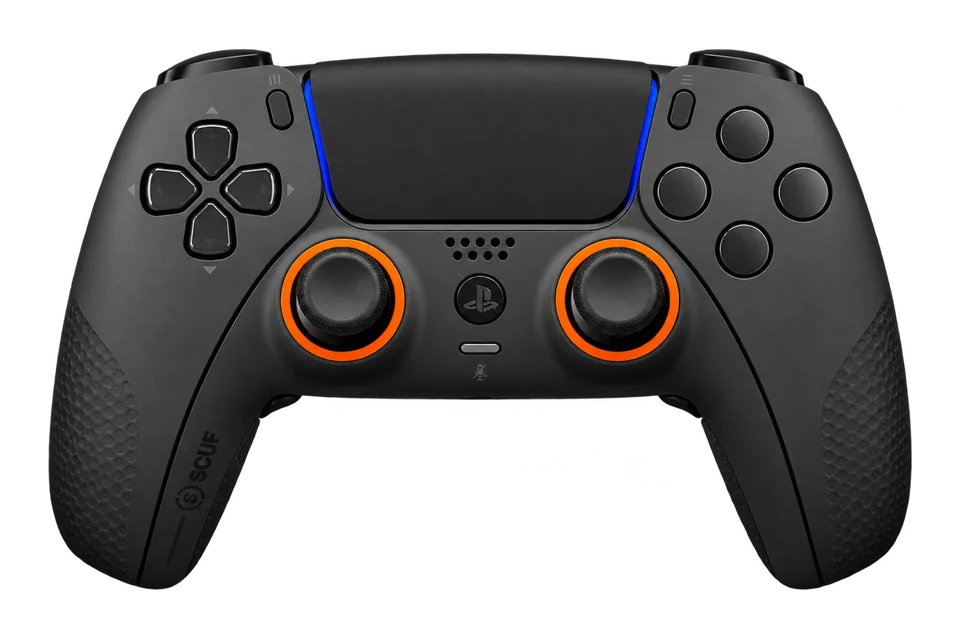 ControllerTester illustration